How to Reduce Lag: A Gamer’s Guide to Smoother Gameplay

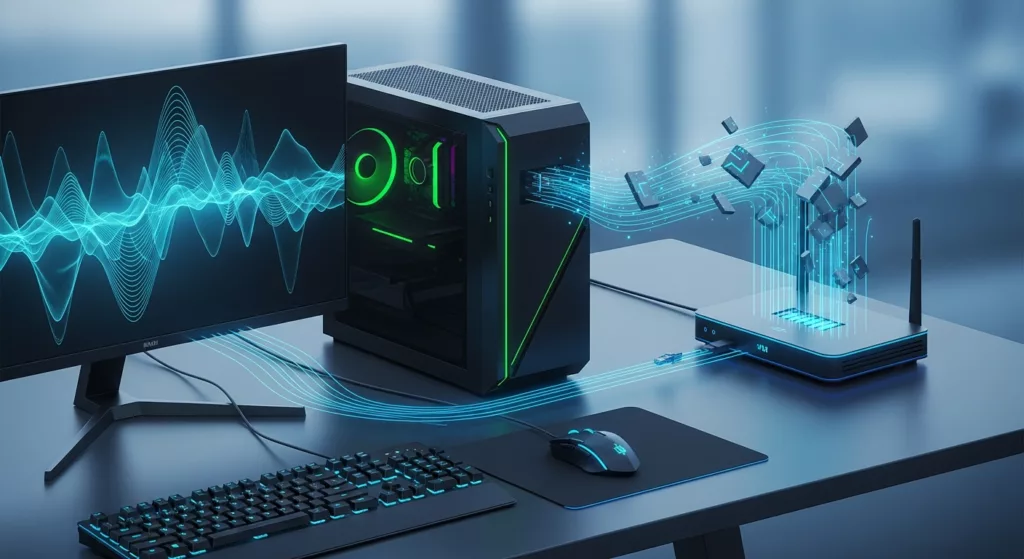
Lag is the worst. Missed shots, rubberbanding, tossing abilities into fights where your timing is completely messed up; everything about lag sucks. Research conducted in 2015 proves that each 100 ms added latency results in about a 25% decrease in player performance. That’s a quarter of your skills gone just because your connection sucks, or your PC can’t keep up.



Fortunately most of it can be fixed. You just need to know what type of lag you’re experiencing.
Know your lag
There are three forms of lag: network lag (high ping), graphics lag (low FPS), and input lag.
Network lag (high ping) occurs when communication between your device and the game server is slow. You press a button, the server does whatever needs to occur in game, and whatever updates travel back to you.
If that takes too long, shots that should hit you start rubberbanding across the map, enemies disappear in and out of cover, and hit registration may seem non-existent.
- Under 20ms is a good ping for competitive gaming
- 40 to 60ms works fine for most people
- Over 100ms nears towards unplayable category
Graphics Lag (low FPS) means your CPU/GPU/RAM isn’t keeping up with what the game wants them to do. Frames take longer to render out and everything stutters, animation becomes jumpy and the game feels incredibly slow. No internet connection can fix this problem.
Input lag is your total response time between pressing your button and seeing an action occur on-screen. When you press a button, your mouse sends that information to your PC which then has to process and render that frame and send it to your monitor to display the new frame. Each delay or bottleneck in that process adds onto your total input lag, causing you to respond to events in the past.
Diagnose which type of lag is ruining your games before you throw time/money towards fixing the wrong problem.
How to fix network lag
For anything multiplayer, network lag causes the most grief. Start here, and work from the biggest wins down.
How to diagnose network lag
Check your in-game ping first. Most multiplayer games show it on the scoreboard or in a corner of your screen. Over 100ms is bad. Numbers jumping around wildly means packet loss.
For a manual test, open Command Prompt and enter: ping google.com -t
Observe the numbers. You’re looking for:
- Below 50ms average
- Consistent readings (not bouncing from 40ms to 200ms to 45ms)
- Hit Ctrl+C to cancel the test
Run “tracert google.com” to see where the problem lives.
This shows every hop between you and the destination. If delay spikes at hop 2 or 3, it’s your local network or ISP. If it spikes near the end, it’s the server.
You have network lag if:
- Enemies teleport or “rubberband” across the map
- Shots don’t register even though you clearly hit
- You die behind cover
- Actions happen a full second after you press buttons
If your ping tests confirm high or unstable numbers, work through the fixes below.
Go wired
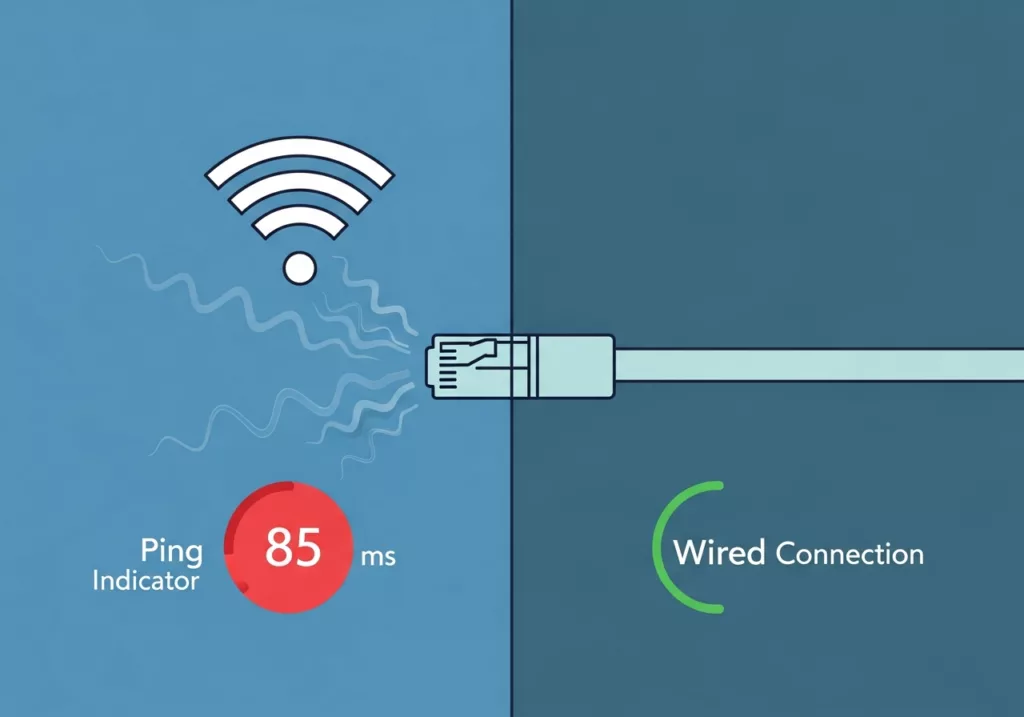
If you take one thing away from this whole article, please let it be this. WiFi increases latency, drops packets and becomes flaky whenever someone else in your home starts streaming or downloading. An Ethernet cable connection will nearly always have a lower and more stable ping.
If you can’t run an Ethernet cable to your router, try Powerline adapters which transmit the signal over the wires in your house. MoCA adapters do the same thing over coaxial cable. Either beats WiFi for gaming.
Pick servers close to where you live
This is basic physics. Data traveling from Chicago to a server in Frankfurt takes longer than data hitting a server in Virginia. Most multiplayer games let you select a region. Always pick the nearest one.
Identify the bandwidth hogs
Background apps can spike your ping by 20-50ms or more. Netflix in the other room. A Windows update chugging away quietly. Cloud storage syncing photos. Everything listed competes for your bandwidth and increases your ping.
Open up your Task Manager (Ctrl + Shift + Esc), sort by Network, and exit stuff before you game. Plugging everything else into airplane mode before a ranked game can also be effective.
While you’re in Task Manager, scan for anything weird. Malware and crypto miners love sitting in the background, quietly chewing through your CPU. If some process you’ve never heard of is using 30 percent of your processor, run a Windows Security scan. That might be your entire problem.
Try a faster DNS server
Changing DNS servers only takes 30 seconds and can prevent random lag spikes.
DNS translates server names into IP addresses. The DNS you’re probably currently using is from your ISP and it sucks. Changing your DNS to Google public DNS (8.8.8.8) or Cloudflare DNS (1.1.1.1) won’t significantly lower the ping that you see in-game, however it will help you connect to new servers quicker and can reduce random lag spikes.
Reboot your router
Once a week, restart your router to avoid ping creep. Routers accumulate connection tables, cached DNS records, and general memory creep.
Restarting clears them all out. If it feels like your ping is getting higher each day, restart your router once a week. As a bonus: If your router has QoS settings, configure them so gaming traffic is prioritized. Gaming packets will move to the head of the queue.
How to fix graphics lag
Once you’re getting below 30 FPS during a firefight, your PC can’t keep up with your gameplay. Prepare to tweak settings or upgrade your hardware.
Step 1: See your frame rate. Turn on an FPS counter using whichever method matches your setup:
- Steam: Settings > In-Game > enable FPS counter
- NVIDIA: Press Alt+Z > Performance overlay
- AMD: Radeon Software > Performance Metrics
- Plarium games: In Mech Arena, toggle the FPS and ping indicator on in Settings. In RAID: Shadow Legends, head to your avatar > Options and check your Frame Rate Limit. If it’s set to Unlimited but gameplay still feels choppy, your hardware is struggling.
- Other games: If your game doesn’t have a built-in counter, skip to Step 2. MSI Afterburner covers this and more.
Once your counter is running, play for a few minutes and pay attention to the numbers:
- 60+ FPS: Smooth. No action needed.
- 30 to 60 FPS: You’ll notice choppiness, especially in fast-paced moments.
- Below 30 FPS: Borderline unplayable for most people. Plarium’s own support docs flag anything under 30 FPS as a sign your hardware can’t run the game effectively.
- Wildly inconsistent FPS: Stuttering between 90 and 25 feels worse than a steady 45. Consistency matters almost as much as the number itself.
Step 2: Find the bottleneck. Download MSI Afterburner (free, works with any game) and enable GPU usage, CPU usage, and VRAM usage on the overlay. Play for a few minutes, then check which component is maxing out:
- GPU pinned at 99%: Your graphics card is the bottleneck. Lower visual settings or upgrade.
- CPU pinned at 99%: Your processor can’t keep up. Reduce CPU-heavy settings like draw distance, NPC count, or physics quality.
- VRAM near your card’s limit: You’ve run out of video memory. Drop texture quality or lower your resolution.
You’re dealing with graphics lag if the game stutters during fights, movement looks jerky even though your ping is fine, or frames tank whenever explosions or particle effects fill the screen. If your FPS counter confirms drops below 60 in those moments, the fixes below will help.
Lower your in-game graphics settings
Most games let you control how hard they push your hardware. Shadows, ambient occlusion, and volumetric effects are the most expensive settings. Anti-aliasing and post-processing come next. Dropping these from Ultra to Medium usually gains you 20 to 40 extra FPS, and you probably won’t notice the difference while you’re actually playing. In extreme cases, setting them to Low is worth it if it means the game runs smoothly.
In Plarium games like RAID: Shadow Legends, you’ll find these options under your avatar > Options > Graphics Quality. Mech Arena has similar controls in its Settings menu. Our own support docs recommend dropping to Low or Medium on older devices if you’re experiencing lag or crashes during long sessions.
Resolution scaling is your nuclear option for FPS gains. It makes the biggest difference, but also the most visible quality trade-off. Texture quality, on the other hand, you can usually leave alone. As long as your GPU has enough VRAM to hold the textures, raising or lowering that setting barely touches your FPS.
Keep your GPU drivers current
NVIDIA and AMD both release driver updates optimized for specific game launches, and push regular performance improvements on top of that. An outdated driver might mean you’re leaving 5 to 15% of your performance on the table. Check NVIDIA GeForce Experience or AMD Radeon Software every couple of weeks for updates.
On a Mac, GPU driver updates arrive as part of macOS system updates, so keeping your operating system current is the equivalent step.
Turn on Game Mode
Both Windows and macOS have a built-in Game Mode that prioritizes your game’s access to CPU and GPU resources.
On Windows 10 or 11, open Settings > Gaming and toggle Game Mode on. It also prevents Windows Update from installing anything or nagging you to restart mid-session.
On Mac (macOS Sonoma or later), Game Mode activates automatically when you launch a fullscreen game. It gives your game priority access to CPU and GPU, reduces background tasks, and even doubles the Bluetooth sampling rate for wireless controllers and headphones.
Neither will transform your performance overnight. But they stop your operating system from stealing resources at the worst possible moment.
Turn off VSync
VSync (short for vertical sync) is a setting that prevents screen tearing, which is when your display shows parts of two different frames at once, creating a horizontal split in the image. It fixes tearing by synchronizing your game’s frame rate to your monitor’s refresh rate.
The problem is how it does this: VSync holds finished frames in a buffer until your monitor is ready for them. That buffer adds input delay you can feel, and in some cases it cuts FPS by 50% or more. For competitive games where reaction time matters, that trade-off isn’t worth it.
You’ll find VSync as a toggle in most traditional PC games (shooters, RPGs, racing games, etc.). If your game doesn’t have the option in its settings, you can also control it through your GPU’s control panel: NVIDIA Control Panel or AMD Radeon Software both let you force VSync on or off globally.
If you own a monitor with G-SYNC (NVIDIA) or FreeSync (AMD), you already have a better solution. These technologies prevent tearing without the latency penalty, so you can leave VSync off entirely.
Upgrade the part that’s actually bottlenecking
Fire up MSI Afterburner when you play and monitor your usage. If your GPU usage is at 99 percent and your CPU is barely breaking 40 percent, buy a new graphics card. If your CPU usage is at 99 percent and your GPU is low, buy a new processor.
SSDs won’t improve your FPS, but they will eliminate hitching when games need to load new areas or assets from a slow HDD. That’s reason enough to make SSDs some of the best value upgrades available. RAM won’t necessarily help performance but if you like to play with Discord, Chrome, and Spotify running in the background then more RAM will help. 16GB is really the minimum these days, but it’s always nice to futureproof yourself by grabbing extra RAM.
How to fix input lag
Good FPS, low ping, and your controls still feel mushy? The problem is between your hands and your display.
How to diagnose input lag
Your ping is fine, your FPS is high, but controls feel mushy. That’s input lag.
The quickest way to see if your game has input lag is to move your mouse in a full circle as quickly as you can. If your crosshair lags behind your mouse cursor, or if there’s an obvious delay between clicking your mouse and something happening on screen, then your game has input lag.
If you have an NVIDIA GTX 900 series card or higher, you can see how many milliseconds your system is experiencing latency in supported games with NVIDIA Reflex:
- Look for “NVIDIA Reflex Low Latency” in graphics settings
- Under 30ms is good
- Over 50ms is a problem
Check your graphics settings for these input lag killers:
- VSync: Adds a full frame of delay
- Triple Buffering: More delay
- Borderless Windowed mode: Routes frames through Windows compositor
Go to testufo.com/ghosting and run the test. Trails behind the moving UFO means your monitor has slow response times.
You have input lag if:
- Controls feel delayed despite good ping and FPS
- Your aim feels inconsistent
- Switching weapons feels sluggish
Max out your mouse polling rate
Polling rate is how frequently your mouse reports its position to your computer. So if you have a polling rate of 125Hz (this is standard on most entry level mice), your mouse is telling your computer its position every eight milliseconds. Increase that rate to 1000Hz and you drop your reporting interval to one millisecond.
That adds up across every single frame. Most gaming mice let you change this in their companion app.
Play in fullscreen mode
Borderless windowed mode adds processing overhead that fullscreen skips entirely. Borderless windowed mode looks convenient, but it routes every frame through the Windows compositor.
Fullscreen avoids that step. When playing fast shooters, those milliseconds add up.
Upgrade your monitor
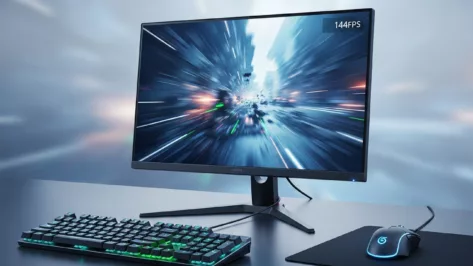
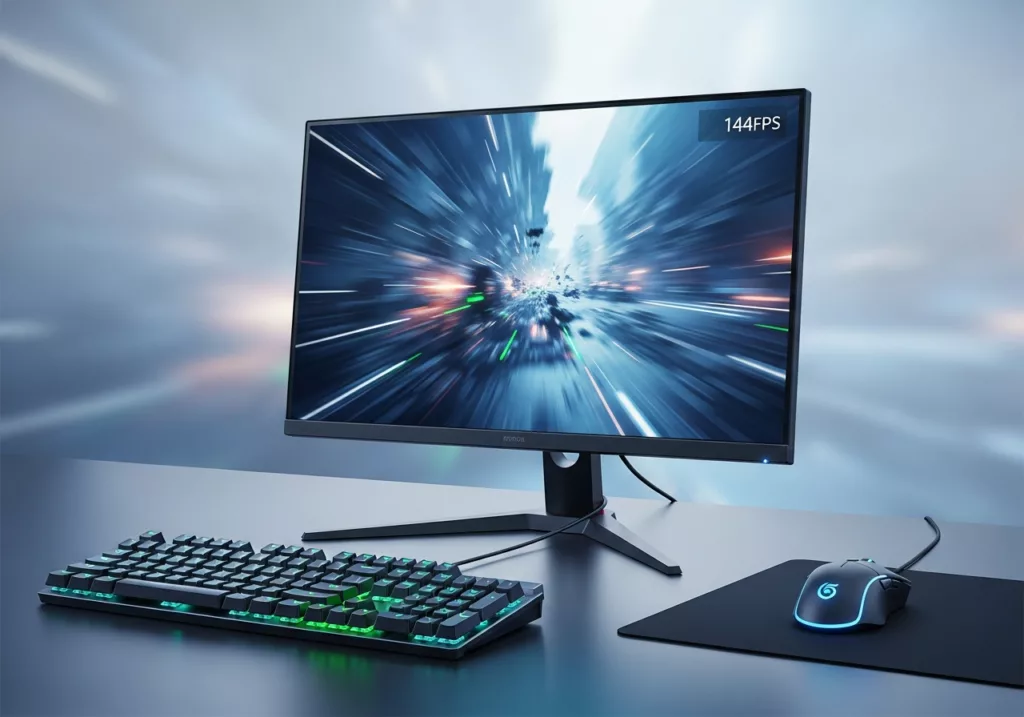
Your monitor is your last bottleneck. No matter how good your graphics card is, you can’t display more than 60 frames per second on a 60Hz monitor. At 144Hz (or 240Hz if you’re really going for it), the picture on your screen redraws more often so there’s less time between when a frame is rendered and when you see it. Most people that upgrade from 60Hz to 144Hz never want to downgrade.
Pixel response time is another feature to look for when buying. You’ll want 1ms or lower. Slow response times result in ghosting: where a fast moving object leaves a trail on the screen as it moves. It’s not really “lag”, but once you experience how annoying it is to constantly be reacting to stale information, you’ll understand why it feels that way.
Use NVIDIA Reflex if your game supports it
If you’re playing on a GTX 900 series card or later, you can take advantage of NVIDIA Reflex to lower your system latency for free. Games like VALORANT, Fortnite, Apex Legends, and many other competitive titles have NVIDIA Reflex support enabled.
Enabling Reflex Low Latency Mode will have your CPU submit work to your GPU right when it needs it and reduce render queue.
Think beyond your current hardware
Sometimes the smartest move isn’t tweaking what you have. It’s changing how you play.
If your computer is showing its age and you can’t justify upgrading everything, yet, see if the game you want to play is on another platform. Specialized launchers can optimize games for your hardware better than any menu can. Plarium Play automatically optimizes games like RAID: Shadow Legends and Mech Arena for your system to give you better FPS with no settings menu required. You can even sync your progress between devices so you can play on mobile during your lunch break and continue playing on PC at night.
Cloud gaming services are improving every year as well. GeForce Now and Xbox Cloud Gaming run titles on remote servers and stream the video to whatever screen you have. The catch is that you’re trading local hardware lag for total dependence on your internet connection.
Emergency lag quick-fix checklist
Mid-session and need lag gone right now? Do these, in order:
- Connect your computer to your router with an Ethernet cable (or at least put your router closer to your computer )
- Close background apps eating bandwidth or resources
- Drop shadows and anti-aliasing down one notch
- Turn off VSync
- Switch to exclusive fullscreen
- Pick the nearest server region
- Restart your router if ping is still spiking
Where to focus your energy
You don’t have to do everything on this list. Diagnose which type of lag is affecting you and attack that problem directly. Investing in a wired connection and playing on a server close to you will remedy rubberbanding issues faster than upgrading your GPU ever will. If your FPS looks good but your inputs are late, focus on VSync, your polling rate, and your monitor
Get lag out of the way and your actual skill decides whether you win or lose. That’s all any of us really want.