How to Optimize Your PC for Gaming: The Complete Guide

Gaming PC performance problems can originate from bad software configurations as well as hardware limitations. While you’ll need to consider upgrades to address the hardware side, it’s easier to fix software limitations.
In this guide, we’ll discuss Windows 11 performance settings, Nvidia and AMD driver settings, RAMs, SSD optimizations, and how to run hardware diagnostics. Whether you’re fighting in PvP games or creating your empire in Plarium’s catalogue of free PC games, you’ll notice the difference in performance after applying some of these settings.



| What this guide covers: Windows 11 game optimization settings | GPU and driver configuration | RAM and storage tuning | In-game settings that matter most | Hardware checks | Quick-win checklist |
Optimize Windows 11 for Gaming
Windows 11 ships with useful gaming features. However, none of them are turned on by default.
1. Enable Game Mode
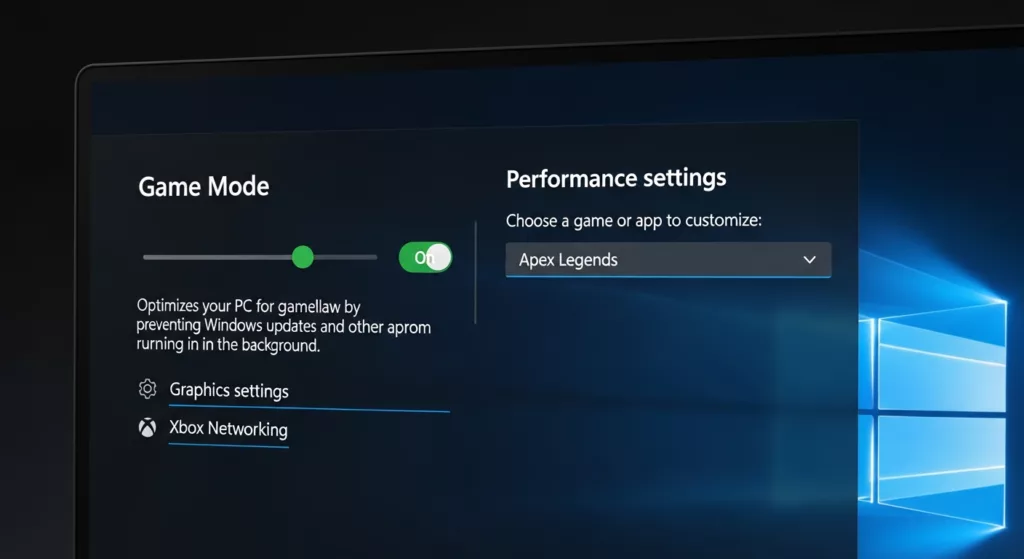
Go to Settings > Gaming > Game Mode and turn it on. Game Mode reduces background CPU activity during gameplay.
Performance tests on game mode show that the feature helps with CPU-related frame drops on low-end PC builds.
2. Set your power plan to Best Performance
- Search for Power & sleep settings in the Start menu
- Click Additional power settings > Show additional plans
- Select Ultimate Performance (if visible) or High Performance
The default Balanced plan actively throttles your CPU between tasks. For gaming, you want the chip running at full speed from the first frame.
3. Turn off Hardware-accelerated GPU Scheduling (HAGS) for older GPUs
HAGS was introduced in Windows 10 20H1 and is often cited as a performance booster. That’s mainly true for the latest generation of NVIDIA and AMD graphics cards.
If you’re on anything older, HAGS adds latency. Find it at Settings > Display > Graphics > Default graphics settings. Check your GPU generation before enabling it.
4. Turn off Xbox Game Bar
Xbox Game Bar eats up resources when enabled. Navigate to Settings > Gaming > Xbox Game Bar and deactivate it. You can leave it on if you stream or clip gameplay on Xbox Game Bar. But if you never open it up, turning it off will free up some RAM and CPU cycles for games.
| Pro-tip:Type ‘msconfig’ into your Start menu > Click on the Boot tab > Advanced Options and ensure ‘Number of processors’ is set to the correct amount your CPU is supposed to have. OEM builds sometimes get this value set incorrectly to a lower amount. |
Set GPU drivers and Settings for Performance
Installing the latest GPU driver is the first step. The second step is to optimize your driver settings. The default settings inside the NVIDIA Control Panel and AMD Software Adrenalin aren’t tuned for performance.
NVIDIA Control Panel: key changes for 2026
- Prefer maximum performance over Adaptive.
- Go to NVIDIA Control Panel > Manage 3D Settings > Power management mode and set it to Prefer maximum performance.
- Low Latency Mode: set to Ultra for competitive games.
- For visually rich single-player or strategy games, On is the better balance.
- Texture filtering quality: High Performance.
- Negligible visual difference, measurable FPS gain.
AMD: the equivalent settings
In AMD Software, go to Gaming > Graphics and enable Radeon Anti-Lag. For power, use Rage Mode if your card supports it (AMD RX 9000 series onward). Also check AMD Smart Access Memory (SAM) is on. SAM allows the CPU direct access to the full GPU frame buffer and can add 5-10% performance on supported platforms.
Keep drivers current, but not bleeding-edge
NVIDIA and AMD release game-ready drivers with major game releases. GPU drivers are worth updating for games you actively play.
However, day-one driver releases can introduce bugs. To be safe, you can wait 3-7 days after a new driver drops before installing. Check the NVIDIA driver release notes for known issues before updating.
Get your RAM ready for action
Most gaming PCs have enough RAM by 2026 standards. The issue is usually speed and configuration.
Enable XMP or EXPO in your BIOS
If you bought 3200MHz or 6000MHz RAM but your PC is running at 2133MHz, then you wasted your money. RAM comes configured to run at its lowest certified speed by default. You have to manually enable XMP (Intel) or EXPO (AMD) in BIOS.
Go into your BIOS under AI Tweaker or Overclocking (varies by motherboard). Enabling XMP is enough to get you 10-20% better performance in memory intensive games.
How much RAM do you actually need in 2026 for gaming?
16GB is the minimum you should get in 2026 for gaming. Strategy games, new MMORPGs, and 1440p or 4K gaming can use over 24GB of RAM in heavy sessions. 32GB of RAM is truly comfortable if you want to game with Discord, a browser, and multiple other apps open.
DDR5 is now the standard these days. If you’re upgrading your RAM, DDR5-6000 is ideal for value. Alternatively, you can also add a couple of RAM sticks to your wishlist and grab them during discount periods.
Storage: SSDs, load times
Slow storage won’t make your FPS worse, but you will see long loading screens, stutters when entering new areas, and audio dropouts during gameplay.
Make sure your game drive is an NVMe SSD
Game load times with a PCIe Gen 4 NVMe drive will be 3-5x faster than a SATA SSD. If your games are installed on a mechanical HDD, grab yourself an SSD. Upgrading to an SSD is the single largest upgrade you can make for under $80.
Defrag and TRIM
SSDs don’t need defragmenting. Windows 11 will automatically run TRIM on SSDs once a week to keep them running smoothly. If you have an SSD, do not run a defrag tool over it. It’ll shorten its lifespan with zero benefit.
If you have HDDs, hit the Start menu and search Defragment and Optimize Drives and make sure to look when you last ran optimizations.
In-game settings: where to find the real FPS gains
No amount of Windows tweaking beats the impact of in-game graphics settings. Here’s how to approach them systematically.
Settings that cost the most performance
- Ray tracing
- The heaviest single toggle in any game. If your GPU is older than RTX 4000 or RX 7000, turn ray tracing off completely. Even on newer cards, Ray Tracing Reflections alone can halve your frame rate at 1440p.
- Resolution scale / render resolution
- You can lower your render resolution to gain FPS. If you have access to DLSS 4, FSR 4, and XeSS 2, you may not even notice the loss in visual quality.
- Shadow quality
- Ultra shadows are expensive. High shadows are usually indistinguishable at normal playing distances. This is the second biggest FPS recovery toggle after ray tracing.
- Ambient occlusion
- Medium or High, skip Ultra. The visual difference is marginal and the cost is real.
Settings you can max out without performance worries
| Setting | Recommendation | Performance Impact | Notes |
| Anisotropic Filtering | 16x | Very low impact | Barely costs anything on modern GPUs. Set to max. |
| Texture Quality | Max | Minimal (if VRAM is sufficient) | Almost no FPS impact if your VRAM can handle it. |
| Field of View (FOV) | Personal | No impact | Purely preference-based, no performance cost. |
| Frame rate vs. frame time:Average FPS is a headline number. What actually feels smooth is frame time consistency. A game averaging 90fps can still feel choppy. If frame times spike to 40ms every few seconds, it feels worse than a locked 75fps. Use in-game overlays like RTSS to track both metrics. |
Network and latency: if you play online games
This section matters most for competitive and multiplayer players. Network optimization can actually help you take your game to the next level.
Wired over wireless, always
Ethernet eliminates Wi-Fi’s potential packet loss and jitter. Even modern Wi-Fi 6-7 routers can add 5-20ms of inconsistency. That difference matters in fast-paced PvP games, so we recommend going wired when possible.
Quality of Service (QoS) on your router
Most routers let you prioritize gaming traffic by device. Log into your router admin panel (usually 192.168.1.1). Then look for QoS or Traffic Priority settings.
Setting your PC to high priority ensures your game packets get out first.
DNS matters more than you think
Your ISP default DNS can add 20-40ms of lookup latency. Switch to Cloudflare (1.1.1.1) or Google DNS (8.8.8.8). This will not reduce in-game ping but does speed up game server connections on launch.
Thermal and hardware health checks
Software optimizations hit their ceiling when hardware is overheating or failing. These checks are worth running once a season.
Check CPU and GPU temperatures
Download HWiNFO64 (free) and run it while gaming for 20 minutes. You want:
- CPU: under 85°C under sustained load
- GPU: under 83°C (most cards throttle at 83-85°C)
- NVMe SSD: under 70°C
If temps are high, clean your PC case fans and heatsinks. Dust buildup can cause thermal throttling and it takes 10 minutes to fix with a can of compressed air.
Check for memory errors
Faulty RAM causes crashes and stutters. You can run Windows Memory Diagnostic or MemTest86 to identify memory errors.
Update your chipset and motherboard drivers
GPU drivers get all the attention. Chipset drivers are just as important and far less frequently updated by default.
- Go to your motherboard manufacturer’s website.
- Find the latest chipset and BIOS update.
- Download and install the new drivers.
Chipset driver updates can noticeably improve stability across your system.
What’s worth playing once your setup is tuned
A properly optimized PC always provides a better gaming experience. Games load faster, feel more responsive, and you stop noticing the setup entirely and just play.
If you want to put those extra frames to use, Plarium runs a strong lineup of free strategy, RPG, and multiplayer games built for PC. Check out the free PC games category for a starting point, or explore the free strategy games for titles like Vikings: War of Clans and Throne: Kingdom at War, both of which reward precision play and benefit directly from the lower latency this guide delivers.
None of these require high-end hardware, but they do run noticeably better once you’ve followed the steps above. Plarium Play, their desktop launcher, also handles game updates and performance settings automatically on PC and Mac.
The complete optimization checklist
Run through these in order. Most take under two minutes each.
Windows settings
- Enable Game Mode (Settings > Gaming > Game Mode)
- Set power plan to High Performance or Ultimate Performance
- Turn off Xbox Game Bar if unused
- Check HAGS setting matches your GPU generation
GPU and drivers
- Update GPU drivers (wait 3-7 days after release)
- Set NVIDIA power management to Prefer maximum performance
- Enable AMD Radeon Anti-Lag and SAM if applicable
- Set Low Latency Mode to Ultra (competitive) or On (other games)
RAM and storage
- Enable XMP/EXPO in BIOS
- Confirm games are on NVMe SSD, not HDD
- Don’t defrag SSDs
In-game
- Turn off ray tracing if GPU is older than RTX 4000 / RX 7000
- Use DLSS 4 / FSR 4 / XeSS 2 where available
- Drop shadow quality
- Max anisotropic filtering (costs nothing)
Network (multiplayer)
- Use wired Ethernet
- Set PC to high QoS priority on router
- Switch DNS to 1.1.1.1 or 8.8.8.8
Hardware health
- Check temps with HWiNFO64
- Clean case dust every 3 months
- Update motherboard chipset drivers
Frequently asked questions
Does optimizing my PC really make a noticeable difference?
Yes, it does, especially the BIOS settings. The Windows power plan alone can recover 10-15% CPU performance on a balanced-defaulted system.
Will these tweaks void my warranty?
Changing Windows settings and enabling XMP (which is a manufacturer-supported feature) won’t void any warranty.
What’s the single highest-impact free change?
Enable XMP/EXPO in BIOS if it isn’t on. For a PC already at correct memory speeds, switching the Windows power plan to High Performance is the next biggest free gain.