How to Fix FPS Drops in Games: A Troubleshooting Guide

Key Takeaways



- Your frame drops are probably from overheating. Or drivers you haven’t updated in six months. Maybe apps are eating resources in the background. Could be your GPU choking on ultra settings. Sometimes it’s Windows power settings. Or your hardware is just old now.
- Before you try random fixes, run a bottleneck test. It shows you what’s actually broken.
- If your hardware can’t keep up with modern AAA games, browser-based titles like on Plarium Play run great on modest specs.
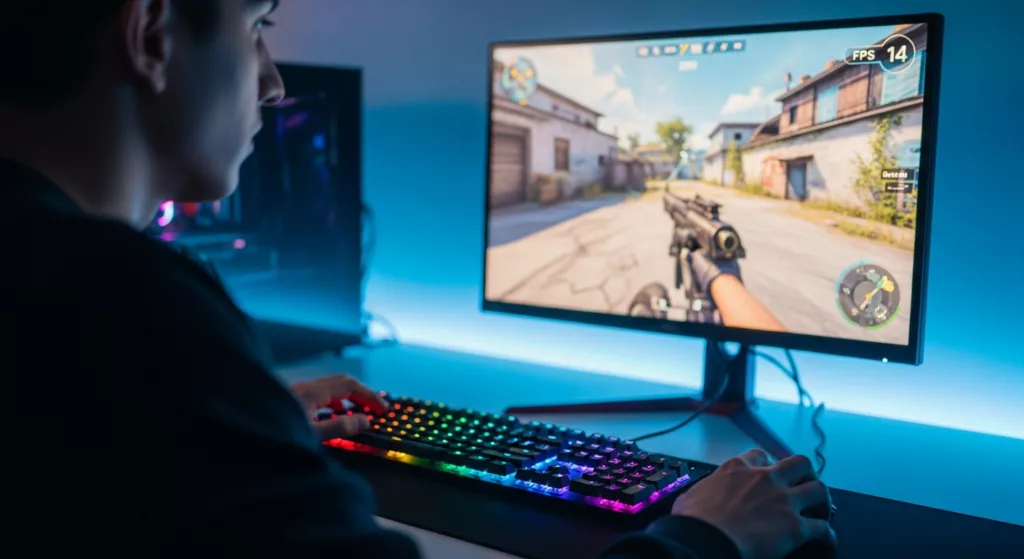
You’re at 120 FPS. Having a great run. Then the screen stutters out of nowhere. Frame counter drops to 20. The game turns into a slideshow for three seconds. By the time it recovers, you’re dead.
FPS drops are incredibly frustrating. Every drop has a cause. And you can fix most of them without spending money.
This guide walks you through how to actually diagnose what’s going wrong before throwing fixes at the wall.
What Causes FPS Drops in Games?
FPS drops happen when hardware struggles to keep up with a game’s demands.
- Your CPU processes game logic
- Your GPU renders the visuals
- Your RAM stores active data
- Your storage feeds in new assets
- If any one of those stalls the whole line backs up.
One thing most casual gamers do not realize is that average FPS is not actually the measure of how smooth a game feels. Frame time consistency matters more. At 60 FPS, frames should take 17ms to render. If your frames render at random intervals, the game will stutter.
The five common causes of FPS drops are:
- Thermal throttling
- When your CPU and GPU overheats, they slow down to avoid damage
- Outdated drivers
- Your GPU can’t communicate properly with the game
- Background processes
- Windows Update, antivirus, Chrome, Discord overlays eating your CPU and RAM
- Graphics settings too high
- You’re asking more of your hardware than it can deliver
- Power plan issues
- Windows is actively limiting your CPU or GPU performance to save power
Step 1: Diagnose Your Bottleneck Before Doing Anything Else
Low FPS usually comes from one of four problems:
- Your GPU can’t keep up with the graphics you’re asking it to render
- Your CPU is struggling with game logic and calculations
- Your components are overheating and throttling themselves to cool down
- You’re out of RAM
Run this test to identify the culprit:
- Join a match and note your FPS
- Lower your resolution to 720p in settings
- Check your FPS again
- Big increase? GPU bottleneck
- No change? CPU bottleneck
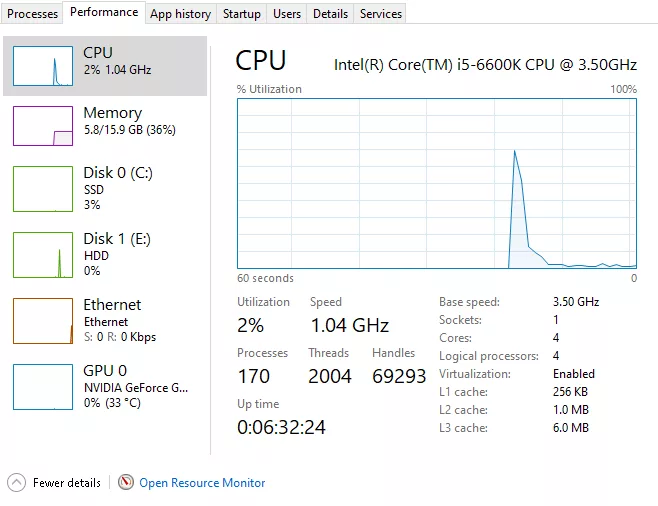
Then confirm with the Task Manager (Ctrl + Shift + Esc). Open the Performance tab while gaming and watch for:
- GPU usage above 90-95%: GPU bottleneck
- One CPU core at 100% while GPU usage is low: CPU bottleneck
- Temps climbing above 85-90°C: Thermal throttling
- RAM usage above 90% with stuttering: You’re running out of memory
Once you’ve identified the likely cause, go straight to that section below.
Fix 1: Cool Things Down
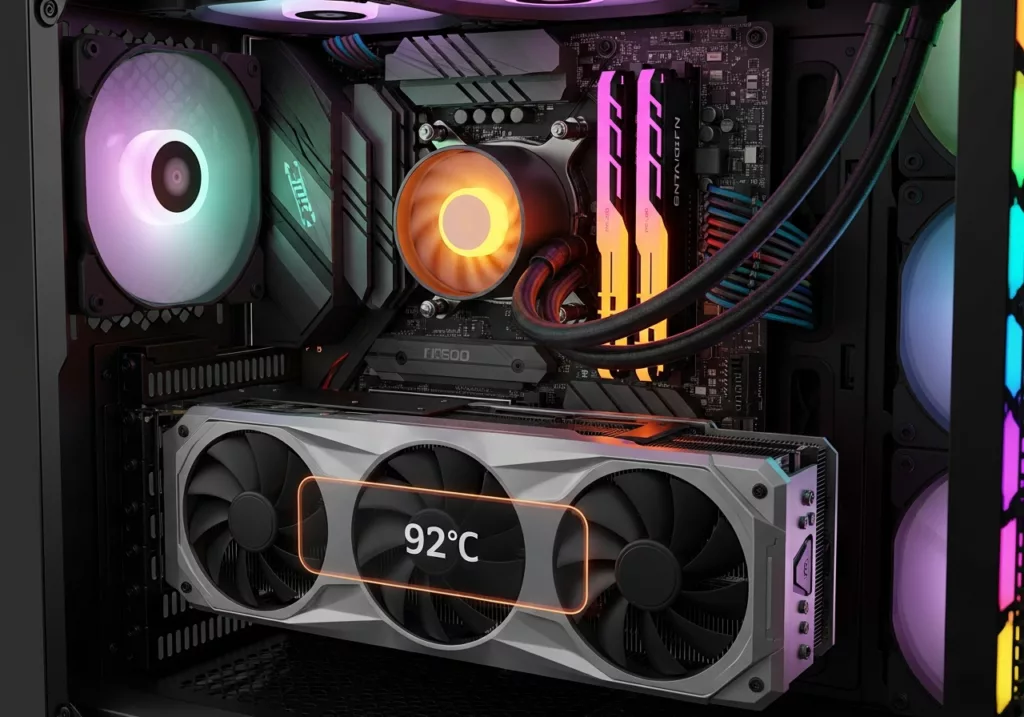
Thermal throttling FPS drops are hardest to understand. They start after 15 minutes of gameplay and worsen over time. If your frames are fine for the first few minutes and then fall off a cliff, heat is almost certainly the reason.
Modern CPUs and GPUs have a built-in safety mechanism. These automatically reduce clock speeds when temperatures get too high. This prevents hardware damage, but it tanks your performance in the process.
Safe temperature limits:
- GPU: should stay below 85°C under sustained gaming load. Above 90°C is a red flag.
- CPU: should stay below 90°C. Most modern Intel and AMD processors start throttling around 95-100°C.
You can download HWiNFO or MSI Afterburner for free to monitor temperatures. Run them alongside your game and watch for spikes.
Cleaning is always the go-to fix. Dust traps heat inside heatsinks and fans. Cleaning a dirty system can lower temperatures by 10-20°C.
Unplug your PC and open the case. You can then use compressed air on fans and heatsinks. Hold the fans still while cleaning so you don’t damage the bearings. We recommend doing this outside to avoid making a mess in closed spaces.
For desktops, also check your case airflow. You want cool air coming in from the front and bottom, hot air exhausting from the rear and top. Also ensure your PC’s fans aren’t too close to the wall or your desk.
The problem is generally the heat for laptops. Use your laptop on a hard surface. Keep vents unblocked. Consider a cooling pad. One thing a lot of people miss: running on battery automatically limits CPU and GPU performance to save power. Plug into the wall before gaming.
If cleaning doesn’t bring temperatures down enough, you should replace the thermal paste between the CPU die and the heatsink. Thermal paste dries out over two to three years. It stops conducting heat efficiently. It’s a 15-minute job on a desktop and makes a meaningful difference on older systems.
Fix 2: Update (or Roll Back) Your GPU Drivers
GPU drivers are the software layer between your game and your graphics card. Manufacturers release updates constantly. These include performance optimizations. They also include bug fixes and game-specific patches. Running outdated drivers is a recipe to leaving performance on the table.
How to update your drivers:
- NVIDIA:
- Open GeForce Experience, go to Drivers, and hit “Check for updates.” Or download directly from nvidia.com/drivers.
- AMD:
- Open Radeon Software and check for updates, or visit AMD’s driver hub.
- Intel Arc:
- Open the Intel Arc Control app or visit Intel’s hub for graphics drivers.
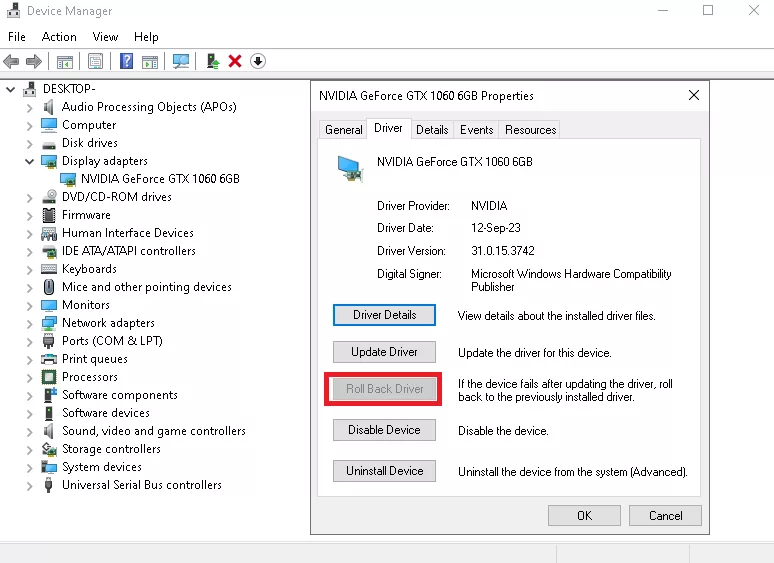
Sometimes a recent driver update causes the drops. If your FPS problems started right after a Windows Update or a manual driver update, try rolling back.
- Open Device Manager
- Expand Display Adapters
- Right-click your GPU
- Choose Properties
- Go to the Driver tab, and hit “Roll Back Driver.”
- Windows Update can also silently install or update GPU drivers without telling you. If drops appeared after a Windows update, this is a solid place to check.
Fix 3: Close Background Processes
Background apps negatively impact your gaming performance. Chrome, Discord, and even Windows itself eat CPU and RAM while you play. Here’s how to reclaim it.
Before you start a gaming session:
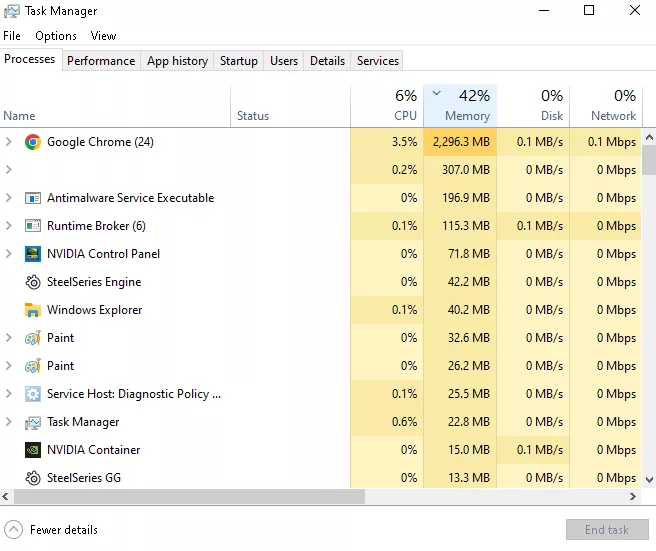
- Open Task Manager and sort processes by CPU and GPU usage. Close anything using more than a percent or two that you don’t need.
- Turn off hardware acceleration in your browser options while gaming. Chrome, Edge, and Firefox browsers can put a strain on your internals.
- Enable Windows Game Mode (Settings > Gaming > Game Mode). It basically instructs Windows to give lower priority to background processes while a game is running.
Any third party overlays you have running should be off as well. GeForce Experience overlay, Discord overlay, Steam overlay, Xbox Game Bar all run in addition to your game. While each may not suck up too many resources on their own, they all add up. If you’re experiencing stuttering during competitive games, try turning them off one by one to test.
Windows Defender / Antivirus software can also randomly start heavy background tasks. If you’re experiencing sudden but brief FPS spikes (rather than consistent stutter/drops) background scanning is likely the culprit. You can set Defender to only scan when your PC is idle or turn the software off completely.
Fix 4: Adjust Your In-Game Graphics Settings
You can gain sizable performance boosts by tuning down your in-game settings. Some settings have a massive performance cost for a visual improvement you’d barely notice in motion. These are the ones to target first.
- Ray tracing
- Beautiful, but crushes even high-end GPUs. Unless you have an RTX 4080 or equivalent, turn it off.
- Anti-aliasing (MSAA 8x or 4x)
- Very GPU intensive. Switch to TAA (Temporal Anti-Aliasing) instead. It’s much lighter on hardware and looks comparable.
- Shadows and ambient occlusion
- Among the most CPU and GPU-intensive settings in any game. Drop these to medium and you’ll barely see the difference in motion.
- Draw distance in open-world games
- Extending it pushes your GPU to render more geometry further away. The performance cost is real; the visual benefit during normal play is often invisible.
Settings to lower with almost no visual impact:
- Motion blur (most people prefer it off anyway)
- Depth of field
- Screen space reflections
DLSS, FSR, and XeSS: the setting casual gamers most often miss
DLSS, FSR, and XeSS are new solutions by NVIDIA, AMD, and Intel respectively that allow players to improve their frame rates.
These are AI-powered upscaling technologies built into modern games. Instead of rendering at your native resolution, the GPU renders at a lower resolution and uses machine learning to reconstruct the image at full resolution. The visual quality is genuinely excellent and the performance gain can be massive.
- DLSS (NVIDIA RTX cards), enabled in game settings, not the NVIDIA control panel
- FSR by AMD, which works on any GPU, including NVIDIA and Intel
- XeSS by Intel, which also works across NVIDIA and AMD hardware
If your game supports any of these, turning them on in “Quality” or “Balanced” mode is one of the biggest free performance gains available.
Fix 5: Fix Your Windows Power Settings
This one takes about 30 seconds and a surprising number of people have never done it.
By default, Windows uses a “Balanced” power plan, which is designed to save energy. This means Windows actively throttles your CPU performance to reduce power draw, including while you’re gaming. Switching to High Performance tells Windows to keep the CPU running at full speed.
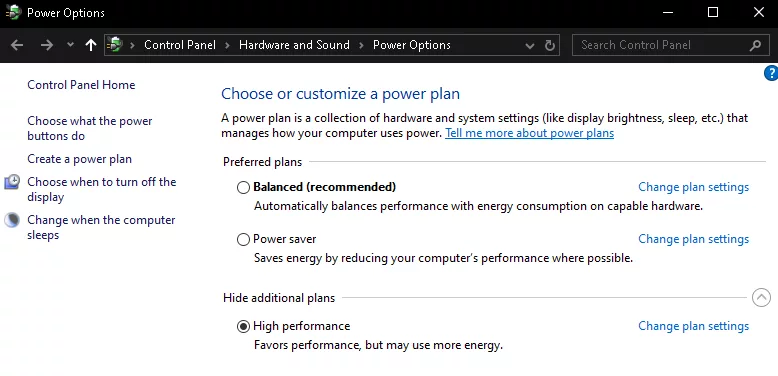
How to change it:
- Open Control Panel
- Go to Power Options
- Select “High Performance.” On Windows 11 Pro
- You may also have access to “Ultimate Performance,” which squeezes out a little more.
There are also a few more Windows-side settings that you can change to score a few additional frames in your favorite games.
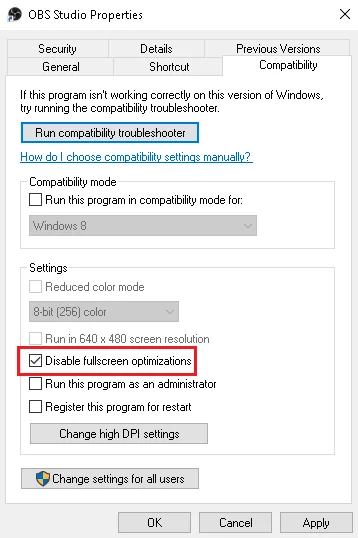
Disable fullscreen optimizations:
- Right-click your game’s .exe file
- Go to Properties
- Navigate to the Compatibility tab
- Check “Disable fullscreen optimizations.”
- This sounds counterintuitive, but this Windows feature can actually cause stuttering in some games.
When Hardware Is the Real Problem
If you’ve tried everything and the FPS is still low, your hardware can’t handle the game. No amount of tweaking will fix it.
Signs you’ve hit the hardware limit:
- Your frames are dropping even when running graphic-intensive scenes at low settings
- VRAM usage is maxed out at 100% (You can check this in Task Manager or HWiNFO64)
- Your hardware is underpowered for this game’s minimum requirements
Upgrading your GPU will always provide the biggest boost to your gaming performance. But if a GPU upgrade isn’t in your near future, not all games stress your system. Older titles, indie games, and games that are designed to be played on lower-end systems can look and play fantastic on machines that can’t handle new AAA titles.
Games on Plarium Play, including RAID: Shadow Legends and Mech Arena, are built to run well on a wide range of hardware.
Quick FPS Fix Checklist
Work through these in order. Most people find their fix within the first three.
- Run an in-game resolution test to see if you are GPU or CPU bottlenecked
- Monitor temperatures with HWiNFO or MSI Afterburner in-game
- Blow dust off of fans/heatsinks with compressed air
- Update graphics drivers (or rollback if frame drops began after updating drivers)
- Close background programs through Task Manager before gaming
- Disable overlays: Discord, GeForce Experience, Xbox Game Bar, Steam, etc.
- Enable Windows Game Mode
- Change power plan to High Performance
- Lower ray tracing, anti-aliasing, and shadow settings in-game
- Enable DLSS, FSR, or XeSS if applicable
- Disable fullscreen optimizations on your game’s “.exe” file
Frequently Asked Questions
Why does my FPS drop suddenly mid-game but recover after a few seconds?
Your fps may be spiking up and down because your CPU or GPU is thermal throttling. Your hardware hits its maximal temperature, then reduces its speed to compensate until it can cool down.
Does more RAM help with FPS?
It can, but only to an extent. You may see meaningful improvements going from 8GB to 16GB RAM. But beyond that threshold, there won’t be much benefit to added RAM with regards to gaming performance.
Does an SSD improve FPS?
Indirectly, sure. An SSD won’t boost your framerate but it will prevent texture pop-in and those halfway-second load hiccups you get when moving to a new area.
Why does FPS drop when I alt-tab and come back?
You can experience frame drops after alt-tab because Windows doesn’t prioritize games while they don’t have focus. It takes a few moments for Windows to detect that you’ve switched back.
Can a VPN affect FPS?
Using a VPN won’t improve your FPS but it also won’t hurt it. If you’re experiencing FPS drops that correlate with the occasional network spike in a multiplayer game, that’s a different issue.