What Is Latency in Gaming? Everything You Need to Know



Latency is the time between you pressing a button and your game responding. It’s measured in milliseconds, but can feel like forever. Competitive shooters, MOBAs and RTS games are won and lost by those 50ms differences.



In this article, we’ll cover exactly what latency is, how it differs from ping & lag, what latency numbers you should shoot for in 2026 and exactly how to fix it step-by-step.
| What this guide covers: What latency is and how it works | Ping vs. latency vs. lag | Latency benchmarks by game type | Jitter and packet loss | How to measure your latency | 12 ways to reduce it |
What is latency in gaming?
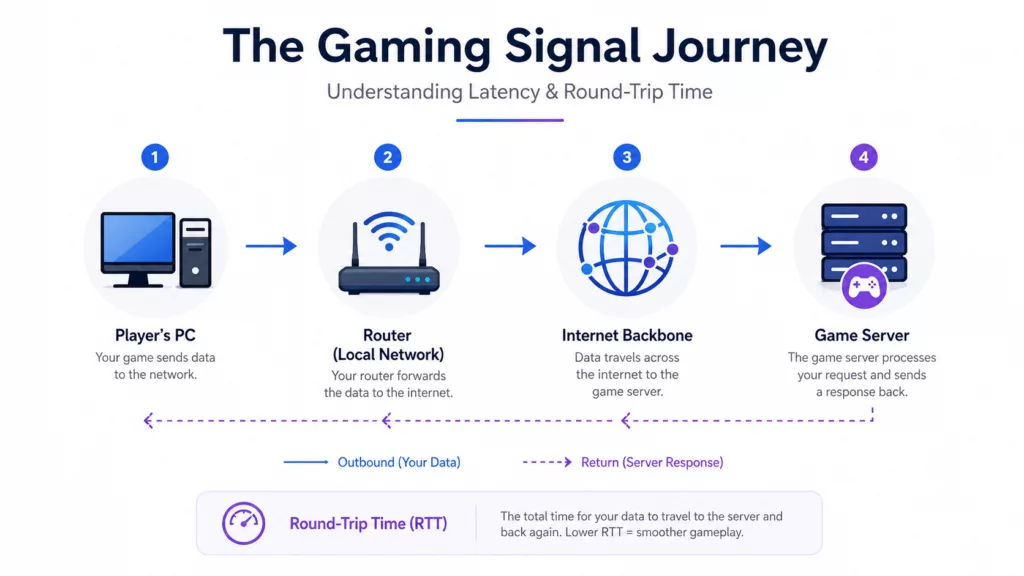
Latency is the time it takes for your data to reach a game server and return. The time is measured in milliseconds, or ms.
In-game actions createe packets of data. These packets leave your device, travel through your router, across the internet to the game server. The total time it takes to return is your latency.
What is good latency for gaming in 2026?
Good latency in 2026 is under 50ms for most games. However, the latency tolerance can vary by genre. Turn-based strategy games handle 150ms without issue, while competitive shooters become unplayable at the same number.
| Ping / Latency | Rating | What it feels like |
|---|---|---|
| Under 20ms | Excellent | Imperceptible |
| 20-50ms | Good | Smooth for all game types |
| 50-100ms | Acceptable | Fine for strategy and RPG; noticeable in shooters |
| 100-150ms | Poor | Sluggish. Competitive play suffers |
| Over 150ms | Unplayable | Clear input lag; rubber-banding in online games |
For most genres on Plarium, including free-to-play multiplayer games, strategy, and RPG titles, anything under 80ms is comfortable.
Normal ping to a local server is 20-60ms in games such as RAID: Shadow Legends and Mech Arena. Cross-region matchmaking increases that to 80-120ms depending on location.
Does latency matter in single-player games?
No, latency doesn’t matter in single-player games. These titles tend to be offline and can work without network connection.
What you might notice instead is input lag. This can originate from your controller, keyboard, or monitor. Games with online features like cloud saves or leaderboards may briefly communicate with servers, but it doesn’t affect core gameplay.
What causes high latency?
Latency problems have five main sources. Finding the right one saves a lot of troubleshooting time.
1. Physical distance to the server
Data cannot travel faster than the speed of light. A player in London connecting to a New York server is physically 5,500km away. Even with perfect infrastructure, that round trip takes at least 35ms just from physics. In practice, routing and processing add more. Distance is the floor on your possible latency for any given server.
Most matchmaking systems prioritize regional servers for this reason. If a game lets you choose server regions manually, always pick the closest one.
2. ISP routing and congestion
Your packets don’t travel in a straight line to the game server. They hop across several network nodes that belong to your ISP. If your packets take congested routes due to your ISP, you may experience latency.
ISP congestion peaks in the evenings (7-11pm local time) when residential traffic is highest.
3. Your home network
Wi-Fi introduces random latency fluctuations. Even high-quality Wi-Fi 6E connections will add anywhere from 5-20ms of variance versus an ethernet connection. Interference from other networks and your distance from the router will all contribute to Wi-Fi latency.
Other devices on your network consuming bandwidth (streaming, downloads, video calls) compete for your router’s uplink capacity. During those moments, your game packets queue behind other traffic.
4. Your PC configuration
Windows background processes, power settings, and GPU driver modes all affect the time between your input and the game processing it. The Windows Balanced power plan throttles CPU frequency during idle moments, causing brief latency spikes when the chip has to spin up again mid-game. The High Performance or Ultimate Performance plans eliminate this.
5. Game server performance
Sometimes the server is the problem. Overloaded game servers increase server tick rate.
A server running at 20 ticks (processing 20 updates per second) will feel sluggish versus a 128-tick server. This is usually outside the player’s control. Server status pages and community Discord servers can confirm if a specific server region is having issues.
Ping vs. latency vs. lag: clearing up the confusion
These three terms get used interchangeably but they measure different things.
Ping
Ping is how long a signal takes to get from your device to a server, and back. It’s in milliseconds. If your game says “Ping: 42ms”, that’s how long it took for that signal to travel back-and-forth with the game server.
Ping is often used as a proxy for low latency. Most gamers think of ping as their primary responsiveness metric.
Latency
Latency is the total round-trip delay between you and your in-game avatar, or between your inputs and their result on screen. It consists of ping (round-trip to server), input latency (controller/keyboard lag), and render latency (GPU frame display time).
Your ping may be 30ms but your total latency may be 80ms or higher once you include the entire chain of inputs through button presses to visual feedback.
Lag
Lag is how high latency feels. When your ping spikes from 30ms to 400ms in the middle of a game you will experience lag. Lag can manifest in three forms:
- Rubberbanding: your character teleports back to where they were.
- Input delay: You see a noticeable delay between when you press a button and when something happens on screen.
- Teleporting opponents: Players you are playing against teleport around.
| Latency vs. FPS:Playing at high FPS with high latency will feel just as bad playing online. Playing at low FPS with low latency will look choppy but be very responsive. |
Jitter and packet loss
Jitter and packet loss can be more tedious to deal with compared to regular ping.
What is jitter?
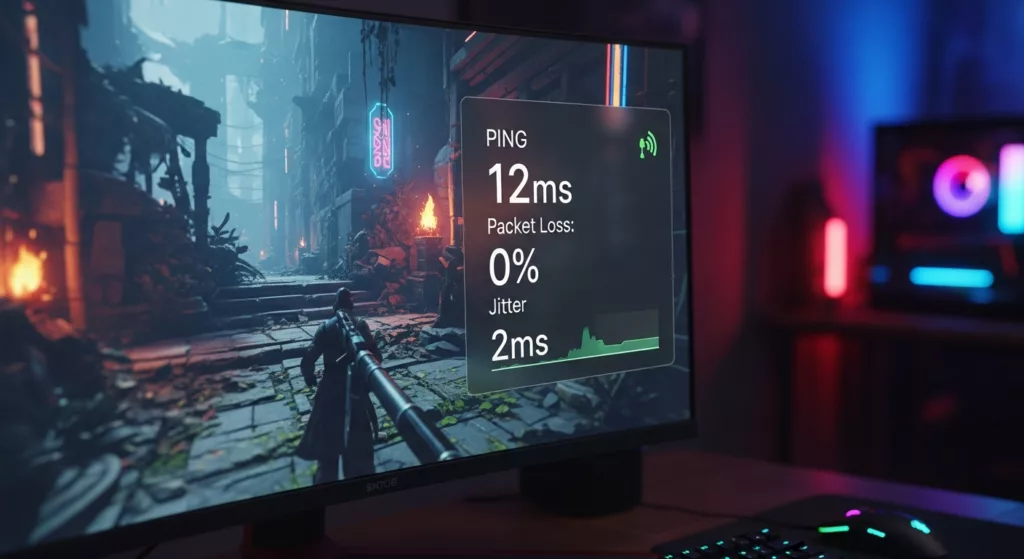
Jitter is the fluctuation in your latency. If your ping fluctuates between 20ms and 90ms every couple seconds then you have high jitter.
High jitter can be worse than high latency as game engines handle consistent lag much better than spikes in latency.
A game sending you updates 60 times per second cannot compensate well for a connection that delivers those updates at random intervals. The engine has to guess where everything is. When it guesses wrong, you see rubberbanding and teleporting.
- Good jitter: under 10ms.
- Problematic jitter: anything above 30ms.
What is packet loss?
Packet loss happens when data packets traveling to or from the server disappear. When 1-2% of packets drop, most games compensate. Above 3%, you start seeing freezes, skipped animations, and actions that simply fail to register.
Packet loss is often intermittent and hard to catch. It might appear for 30 seconds during peak ISP congestion periods and disappear again. When it shows up, your game may feel random and broken with your ping still looking fine.
You can check whether you’re experiencing packet loss via CloudFlare’s speed test. This service measures your network vitals via the closest server available to you, so the in-game results may vary.
How to measure your latency properly
The ping number in a game is a useful starting point. It is not the complete picture.
1. In-game overlays
Most games have a debug overlay accessible via console commands or settings menus. In Windows 11, you can also use Xbox Game Bar (Win + G) > Performance to see network stats in real time.
2. Use diagnostic tools
Third-party tools run continuous ping tests and trace your connection route can show exactly where latency or packet loss is being introduced. If your ISP gateway is adding 40ms, that points to an ISP issue. If your router shows packet loss, the problem is in your home network.
3. Speedtest vs. gaming latency
Speedtest.net doesn’t measure latency to game servers. A Speedtest showing 5ms ping does not mean your game will run at 5ms. Use game-specific tools or ping the actual game server IPs for accurate readings.
12 ways to reduce your gaming latency
Work through these in order. The first few have the highest impact and take under two minutes.
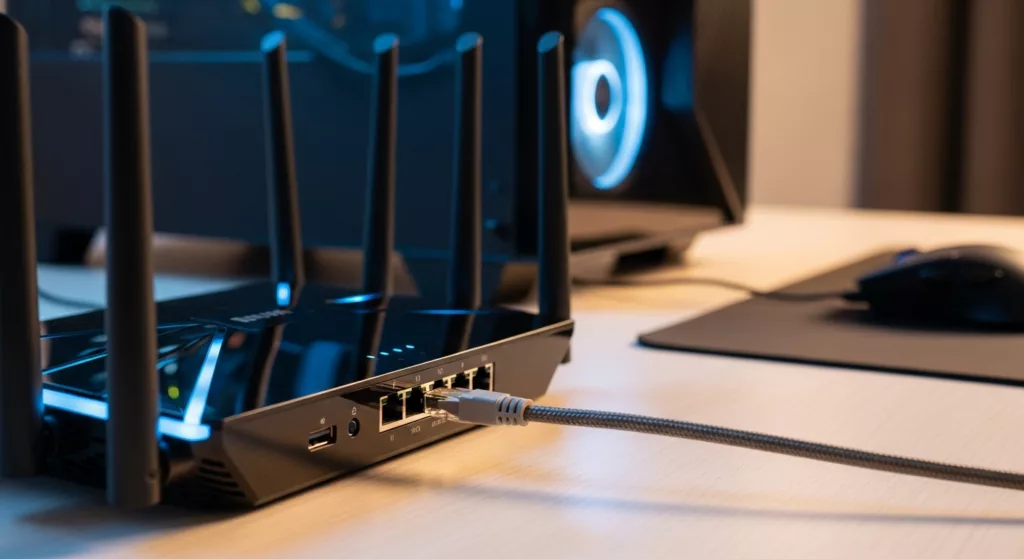
- Connect to the internet using a wired Ethernet connection. Easily the single biggest improvement that most wireless gamers can make. Cuts jitter dramatically.
- Use a High Performance or Ultimate Performance Windows power plan. Eliminates CPU throttle-related latency spikes. Available in Power & sleep settings.
- Turn on QoS (Quality of Service) on your router. Login to your router admin console and mark your gaming PC as high priority. Game packets leave first, even when the network is busy.
- Choose the nearest game server region. Found in in-game settings. Playing on a server 3,000km away when you have a regional server available is a fixable problem.
- Shut down bandwidth heavy background apps. Streaming, cloud backups (OneDrive, Google Drive) and browser downloads all fight for your uplink bandwidth.
- Switch to a gaming router or a new generation router. Old routers slow down packet processing. Newer generation gaming routers (ASUS ROG Rapture, Netgear Nighthawk) add hardware packet prioritization.
- Update your network adapter drivers. Out of date drivers add noise. Navigate to Device Manager > Network Adapters and update.
- Turn off Windows Auto-Tuning if you notice packet inconsistencies.
- Change your DNS to 1.1.1.1 (Cloudflare) or 8.8.8.8 (Google). Quicker DNS lookups reduce the time it takes to establish a connection with a server. Doesn’t reduce in-game ping, but does reduce matchmaking and session start times.
- Try a gaming VPN if ISP routing is your problem.
- Contact your ISP.
- Consider upgrading your internet plan. Bandwidth matters less than you think for gaming. What matters is consistent low ping and low jitter. A 100Mbps connection with stable 20ms ping beats a 1Gbps connection with 80ms jitter every time.
How latency shapes which games to play
Not every game needs a 20ms connection. Strategy games, turn-based RPGs and match-3 games all work fine with 80-150ms connections with zero perceived impact. That makes them great for satellite, mobile broadband, or less reliable connections.
If you want to explore games that play well across a range of connection types, Plarium’s free game library includes titles spanning both categories: the fast PvP of Mech Arena rewards a solid connection, while Vikings: War of Clans, RAID: Shadow Legends, and the strategy lineup play smoothly at higher latencies. With over 500 million players worldwide across PC, mobile, and browser, these games are also stress-tested across hugely varied network conditions.
Understanding your connection quality helps you match to the right type of game in the first place.
Frequently asked questions
What is a good ping for gaming?
Under 50ms is good for most games. Under 20ms is ideal for competitive titles.
Does having fast internet make my ping low?
Not really. Unless your ping exceeds your download speed, latency is decided by the ping of your connection to the server.
Why does my ping randomly jump?
Unexpected ping spikes can occur because of three reasons: programs on your PC using up resources (CPU/network), other people using your network at home, or your ISP congestion.
Will 5G home internet work for gaming?
Yes, 5G home internet is now good enough for gaming if you’re in a city. The major US providers offer latencies between 20-40ms, which is low enough to play games. Performance varies more if you’re in rural areas, so try it out if you can.
Can a VPN reduce latency?
A standard VPN almost always increases latency by routing your traffic through an additional server. Gaming-specific VPNs can optimize routing to game servers and can sometimes reduce latency.