Expert Tips for How to Play Mobile Games on PC Successfully


Playing mobile games on PC beats phone gaming with bigger screens, better keyboard and mouse controls, and longer play sessions without battery drain. You have three routes to choose from: officially supported options like Google Play Games, emulators like BlueStacks, or dedicated developer launchers like Plarium Play. Which one works best comes down to what games you play and what your PC can handle.



Want to get serious about mobile games? Move them to PC. That’s how most grinders approach these titles once they’re invested.
Your PC monitor gives you a way bigger screen that changes how you see the game. Details show up clearer, enemies are more visible, and you spot threats before they become problems. Playing on keyboard and mouse beats touchscreen tapping any day of the week. Your aim gets sharper, your reaction times get quicker, and you can hit clean complex combos consistently. No accidental touches, no overheating phone, no battery drain mid-raid.
Desktop setups solve the biggest pain points that mobile forces on you. Whether you’re looking for how to play mobile games on PC using BlueStacks or you want to skip emulators entirely, the shift to desktop matters if you care about performance. Playing old mobile games on PC that can’t run on modern phones is just a bonus. But first you need to know what your PC can actually do.
Hardware Essentials for Mobile Gaming on PC
| Consideration | Modern 3D Games | Older 2D Games | System Requirements |
| Processor | Solid multicore needed | Runs on anything | CPU with virtualization support (emulators only) |
| RAM | 8 to 16 GB minimum | Minimal resources | 8 GB or more for heavy titles |
| GPU | Capable card (integrated or dedicated) | Not critical | Dedicated GPU preferred |
| Storage | SSD recommended | Any drive works | SSD for faster loading |
| OS | Windows 10 or 11 | Windows 10 or 11 | Windows 10 or 11 |
| Controls | Keyboard and mouse mapping | Keyboard and mouse mapping | Adjustment period required |
Before downloading anything, check what your setup can actually do. Not all PCs are created equal, and not all games demand the same power.
Modern 3D games demand real hardware. You need a solid multicore processor, somewhere between 8 and 16 GB of RAM, and a real graphics card to keep frame rates smooth. Older 2D games run fine on basically any PC, even the really old ones.
Switching from touchscreen controls to keyboard and mouse takes some time getting used to. But eventually you’ll get the hang of it and your skill will improve significantly.
Your PC setup matters when you’re running an emulator. Windows 10 or 11 is preferred. Make sure your CPU supports virtualization, get at least 8 GB of RAM if you’re playing demanding games, and stick an SSD in there for faster loading speeds. Keep your background apps closed and update your drivers regularly. The more you tweak the software settings to squeeze every bit of performance, the better your experience gets.
Official Ways to Play Mobile Games on Desktop
Let’s have a look at three different ways you can play your favorite mobile games on PC.
Using Google Play Games and Screen Mirroring for PC
| Method | Setup Time | Game Library | Progress Sync | Official | Best For |
| Google Play Games for PC | Quick | Many Android titles | Automatic | Yes | Clean official experience |
| iPhone Screen Mirroring | Very quick | Any iPhone game | Manual per session | Yes | Playing iPhone games big |
| Expert tips for both | N/A | Account sync, SSD space, WiFi | Instant transfers | Yes | Optimal performance |
If you want the cleanest way to play mobile games on your PC without using emulators, then Google Play Games for PC is your answer.
It runs Android games directly on Windows through a native app tied to your Google account. Your progress, purchases, and achievements sync between your phone and PC automatically.The interface is made for bigger screens and keyboard and mouse controls. You don’t have to deal with any third party software or worry about any sketchy tools.
Here’s how you get it running:
- Go to play.google.com/googleplaygames in your browser.
- Download the installer and run it.
- Follow the setup steps.
- You might need to turn on virtualization in Windows Features or your BIOS if prompted.
- Sign in with your Google account.
- Browse the library and install whatever games you want.
- Start playing (the keymapping tools let you customize your controls exactly how you like them).
If you want to play iPhone games on PC, screen mirroring is your move. Apps like LonelyScreen turn your Windows PC into an AirPlay receiver. You then wirelessly stream your iPhone screen to your monitor and control the game with your mouse and keyboard (where supported). Here’s how to do it:
- Download LonelyScreen.
- Launch it.
- Make sure your iPhone and PC are on the same WiFi network.
- On your iPhone, swipe down to open the Control Center.
- Tap Screen Mirroring.
- Select your PC from the list.
- Once connected, launch any game and enjoy.
Set Up and Use an Emulator
| Emulator | Resource Usage | Performance | Best For | Setup Difficulty |
| BlueStacks | Moderate to High | Excellent for gaming | Demanding titles | Easy |
| LDPlayer | Light to Moderate | Excellent | Balanced gaming | Easy |
| MuMu Player | Light to Moderate | Excellent | Most games | Easy |
| NoxPlayer | Light to Moderate | Excellent | Most games | Easy |
Game emulators are your key to basically every Android game ever made, including old titles that don’t run on modern phones anymore.
Emulators create a virtual Android environment on your PC. You can install games straight from the Google Play Store or drop in APK files for older titles. This is how you play mobile games on PC with BlueStacks and its competitors. BlueStacks is the most recognized name in the space, with solid gaming performance and plenty of built-in features. If you want to skip it though, LDPlayer, MuMu Player, and NoxPlayer are legit alternatives that often run lighter on system resources. They use fewer resources and handle most games just fine. Here’s a step-by-step guide:
- Go to the official site for your emulator and grab the latest Windows version.
- Run the installer as admin and follow the prompts.
- If it flags that virtualization is disabled, head into your BIOS and turn it on. Makes a huge difference.
- Launch the emulator once it’s installed. You’ll see an Android screen.
- Sign in with your Google account and access the Play Store.
- Search for games and install them. Drag and drop old APK files onto the emulator if you have them.
- Open the keymapping tool, usually a keyboard icon or Ctrl+Shift+A in BlueStacks. Map your keys to the on screen buttons. The visual overlay shows you exactly what you’re binding. You can make macros and adjust sensitivity so your controls feel responsive.
Performance matters when you’re emulating. Allocate 4 to 8 GB of RAM and 4 or more CPU cores into your emulator if your PC has 16 GB or more total. This will reduce lag in CPU-intensive games and give your system room to breathe.
Set your frame rate to 60 FPS or higher, some emulators go to 240 FPS. Use High Performance mode if you have a high-end PC. For older or lighter games, lower your resolution or DPI to keep everything smooth on midrange PCs. Kill background apps before launching heavy games through Task Manager. Keep your GPU drivers updated for smoother performance and fewer compatibility issues.
Emulators are the MVP for bringing old mobile games back on PC because you get modern controls, bigger screens, and none of the compatibility headaches you’d hit trying to install them on a modern phone.
Plarium Play: Cross Device Gaming
| Aspect | Plarium Play | Third Party Emulator | Standard Browser |
| Official support | Yes | No | No |
| Progress sync | Automatic and seamless | Varies by emulator | Manual transfers |
| Graphics optimization | Fully optimized for desktop | Generic scaling | Limited graphics |
| Server stability | Dedicated Plarium servers | General emulator stability | Variable |
| Control optimization | Built for the game | Generic keyboard mapping | Emulated controls |
| Device switching | Flawless sync | Requires manual management | Separate profiles |
Mobile and PC gaming used to live in completely separate worlds. Now the lines are blurring, and more developers are building ecosystems where your progress follows you between devices.
Plarium Play is Plarium’s official desktop launcher for their own catalog. It’s a native client rather than a workaround, which means you’re not stacking an emulator on top of a mobile build. One Plarium ID handles your account across phone and PC, so your progress, purchases, and achievements sync automatically between the two.
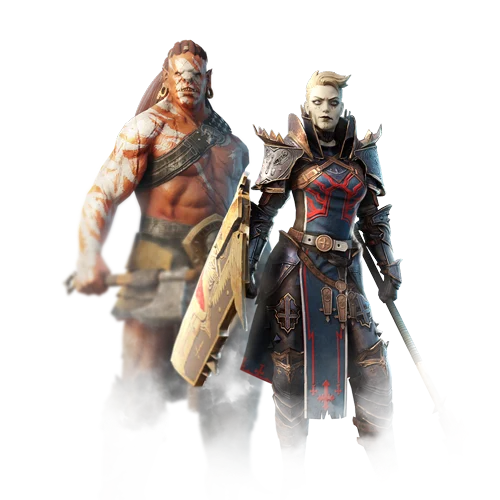
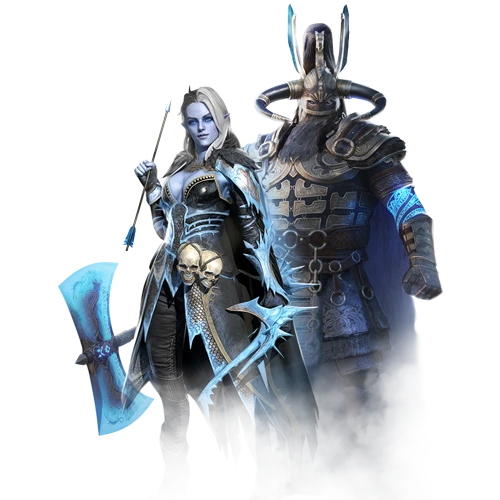
The desktop client gives you HD graphics, custom keyboard and mouse controls, and dedicated servers. For titles like RAID: Shadow Legends, Mech Arena, and Vikings: War of Clans, that means sharper visuals, a wider view of the battlefield, and more responsive inputs than you’d get tapping on glass. Worth knowing upfront: Plarium’s games lean heavily on monetization prompts and automated systems like auto-battle, and the launcher doesn’t change any of that. What it does change is the quality of the experience while you’re actually playing.
If you’re already grinding a Plarium title, Plarium Play is the most direct route to a better version of the same game. If you’re not playing a Plarium game, it’s not relevant to you.
Choose Your Best Option
You have three solid routes to play mobile games on PC. Which one you choose depends on what you’re actually playing and what your PC can handle.
- Native PC storefronts like Google Play Games are officially supported options. Games sync automatically, the setup stays clean, and you’re not dealing with weird software. You’re limited, but this is the safest and most stable option available.
- Emulators open up your entire library, including old games that won’t run on modern phones and niche titles that never got PC ports. You get total control over your setup and keybindings. That said, it requires more setup work and more system resources.
- Developer launchers like Plarium Play give you the cleanest experience for the specific games they support. Graphics are tuned for desktop, controls are built for the game rather than mapped onto a mobile layout, and your progress moves with you. The tradeoff is obvious: you’re only going to use it if you’re playing something in that developer’s catalog.
The best choice depends on what you’re grinding and what your PC can handle. Some games work best on one platform and some on another. You now have real options instead of just squinting at your phone screen. Pick the path that fits your games and your setup, then enjoy actually comfortable gaming.
FAQs
Is Playing Mobile Games on PC Allowed?
Can I Sync My Phone Progress to PC?
Are Emulators Safe to Download?
Do I Need a Gaming PC to Run Mobile Games?
Which Emulator Is Best for Mobile Gaming?